
ONE PIECE Bingo Cards - Print Free or Customize
Print free ONE PIECE bingo cards or customize, unlimited cards! Choose from 41,500+ templates or use the bingo card generator. Add numbers, words, photos, or mix them all. Play using PDF prints, virtual bingo cards, and the virtual bingo caller, or go hybrid.
About: This bingo card is all about turning your karaoke night into a full-blown pirate adventure inspired by anime. Packed with shout-outs, dramatic poses, and plenty of “nakama” energy, it’s perfect for One Piece fans or any anime-loving crowd. Expect playful chaos, cosplay moments, and lots of laughs as everyone gets swept up in the high-seas spirit!
How To: To save a PDF to print, click the Print button. You can adjust the number of cards and other printing options on the Print tab. Grid items and free space content can be edited on the Basic tab. Appearance can be totally customized on the relevant tabs, or you can easily locate any setting on the 🔍 tab.
How to play ONE PIECE Bingo Cards?
- Virtual Players: Click on the Play button above, and then click on the 🎫 button.
- Paper Caller: Print PDF calling list & calling slips and manually pick the slips.
- Virtual Caller: Click on the Play button above.
- Paper Players: Print PDF bingo cards and manually scratch the cards.
- Mixed Mode: Select any combination above. For example, caller can be either Printed or Virtual. And players can be Printed or Virtual or a combo of both.
Step-By-Step:
- Start by getting the ONE PIECE PDF by clicking on the "Print" button above.
- Open the PDF and print it.
- For random drawing, you can print another copy of the call list, cut, fold and then pick them randomly at play time.
- Cut the bingo cards at the cut lines if there are more than 1 bingo cards per page.
- Distribute one card per player. For marking, you can use pencils. Crayons cost the least.
- Select one person to be the caller. If you are playing in a small group, the caller may as well play along with their own Bingo card.
- The caller initiates the game by randomly pulling an item from the call list and announcing it to everyone.
- The players look at their cards to see if they have the announced word. If they do, they mark that word.
- The first player to complete a horizontal, vertical, or a diagonal line of marked items announces "Bingo!" and wins the game.
- The caller validates that the items crossed off form a correct line as per the Bingo card and call list.
- You can play for varied patterns or a full card blackout for a longer game.
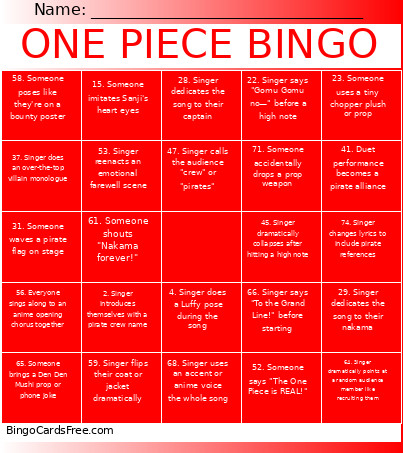 This ONE PIECE Bingo Cards Game contains following Words or Phrases: 1. Someone shouts "KAIZOKU ORE WA NARU!" before singing, 2. Singer introduces themselves with a pirate crew name, 3. Someone wears a straw hat on stage, 4. Singer does a Luffy pose during the song, 5. Singer calls their friends "nakama", 6. Singer dramatically points toward the horizon like searching for the One Piece, 7. Someone uses a wanted poster as a prop, 8. Singer wears a cape or coat like a captain, 9. Audience sings "YOHOHOHO" together, 10. Singer laughs with an iconic anime laugh, 11. Someone does a Zoro lost joke on stage, 12. Singer gets "lost" before reaching the stage, 13. Singer brings a toy sword on stage, 14. Singer wears three swords or pretends to do Santoryu, 15. Someone imitates Sanji's heart eyes, 16. Singer spins or kicks like Sanji mid-song, 17. Singer wears goggles like Franky or Usopp, 18. Someone yells "SUPER!" dramatically, 19. Singer strikes a JoJo-level anime pose, 20. Singer acts out eating meat on stage, 21. Singer pretends to stretch like rubber powers, 22. Singer says "Gomu Gomu no—" before a high note, 23. Someone uses a tiny chopper plush or prop, 24. Singer wears animal ears or antlers like Chopper, 25. Singer dramatically cries like Usopp, 26. Singer acts fearless but panics halfway through, 27. Singer asks the audience to become their crew, 28. Singer dedicates the song to their captain, 29. Singer dedicates the song to their nakama, 30. Singer dedicates the song to a fictional pirate crush, 31. Someone waves a pirate flag on stage, 32. Singer uses a chair as a "ship", 33. Singer dramatically "falls overboard" after the song, 34. Audience members wave phone lights like the ocean, 35. Someone shouts "ROOM!" or another anime attack mid-performance, 36. Singer enters the stage like a boss battle introduction, 37. Singer does an over-the-top villain monologue, 38. Singer wears sunglasses like Doflamingo, 39. Someone laughs like a villain for too long, 40. Singer fake sword fights another performer, 41. Duet performance becomes a pirate alliance, 42. Solo performance suddenly gains backup dancers/crewmates, 43. Someone dramatically betrays their crew mid-performance, 44. Singer pretends to activate Haki, 45. Singer dramatically collapses after hitting a high note, 46. Someone crawls on stage like they survived Marineford, 47. Singer calls the audience "crew" or "pirates", 48. Singer performs while holding food/meat the whole time, 49. Singer wears all black like a secret government agent, 50. Someone salutes like a marine officer, 51. Singer uses a fan dramatically like an anime reveal, 52. Someone says "The One Piece is REAL!", 53. Singer reenacts an emotional farewell scene, 54. Someone cries over a prop ship or plush, 55. Singer performs an opening song dramatically, 56. Everyone sings along to an anime opening chorus together, 57. Singer attempts a dramatic anime run on stage, 58. Someone poses like they're on a bounty poster, 59. Singer flips their coat or jacket dramatically, 60. Singer ends the performance by raising a fist in the air, 61. Someone shouts "Nakama forever!", 62. Singer acts like they're giving a pirate captain speech, 63. Someone wears an eyepatch or pirate accessories, 64. Singer dramatically points at a random audience member like recruiting them, 65. Someone brings a Den Den Mushi prop or phone joke, 66. Singer says "To the Grand Line!" before starting, 67. Audience chants along during the performance, 68. Singer uses an accent or anime voice the whole song, 69. Someone acts out being defeated by an emperor, 70. Singer performs with more than 5 crew members on stage, 71. Someone accidentally drops a prop weapon, 72. Singer uses fake dramatic anime tears, 73. Someone does jazz hands but calls it "pirate energy", 74. Singer changes lyrics to include pirate references, 75. Performance ends with everyone posing like a crew photo.