
June Location Meeting Bingo Cards - Print Free or Customize
Print free June Location Meeting bingo cards or personalize, unlimited cards! Select from 41,500+ designs or use the bingo card generator. Add numbers, words, images, or any combination. Play using PDF printouts, digital bingo cards, and the digital bingo caller, or go hybrid.
About: This bingo card is perfect for a team meeting or division event in a fast-paced, metrics-driven company. With questions touching on performance stats, employee milestones, and business goals, it’s designed to energize your group while reinforcing key achievements and initiatives. Use this for engaging your team, fostering healthy competition, and celebrating collective wins.
How To: To download a PDF to print, click the Print button. You can adjust the card quantity and other printing settings on the Print tab. Grid items and free space content can be edited on the Basic tab. Appearance can be entirely customized on the corresponding tabs, or you can easily search any preference using the 🔍 tab.
How to play June Location Meeting Bingo Cards?
- Virtual Players: Click on the Play button above, and then click on the 🎫 button.
- Paper Players: Print PDF bingo cards and physically write on the cards.
- Paper Caller: Print PDF calling list & calling slips and physically draw the slips.
- Virtual Caller: Click on the Play button above.
- Combo Mode: Pick any combination above. For instance, caller can be either Paper or Virtual. And players can be Paper or Virtual or a mix of both.
Step-By-Step:
- Start by downloading the June Location Meeting PDF by clicking on the "Print" button above.
- Open the PDF and print a hard copy.
- For random calling, you can print another copy of the call list, cut, fold and then pick them randomly at play time.
- Cut the bingo cards at the cut marks if there are more than 1 bingo cards per page.
- Give one card to each player. For marking, you can use crayons. Crayons cost the least.
- Pick one person to be the caller. If you are playing in a small group, the caller can as well play along with their own Bingo card.
- The caller begins the game by randomly drawing an item from the call list and announcing it to everyone.
- The players check their cards to see if they have the announced word. If they do, they mark that word.
- The first player to complete a horizontal, vertical, or a diagonal line of crossed items shouts "Bingo!" and wins the play.
- The caller confirms that the items marked form a correct line as per the Bingo card and call list.
- You can play for varied patterns or a full card blackout for an extended play.
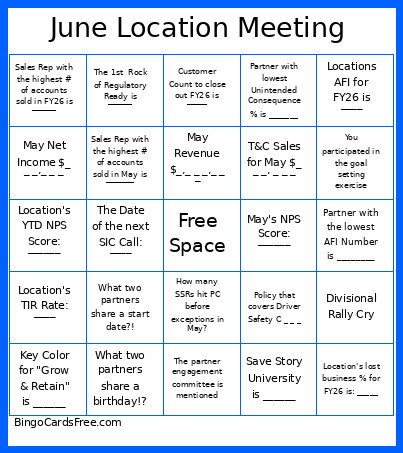 This June Location Meeting Bingo Cards Game contains following Words or Phrases: Divisional Rally Cry, Key Color for "Complex Offense" is _____, Key Color for "Grow & Retain" is ______, The 1st Rock of Regulatory Ready is ______, The 7th Rock of Regulatory Ready is ______, Partner with the most safety leads: ______, The total # of Safety Leads submitted in FY26 is _____, The Winner of the Red Yeti Cooler, Save Story University is ______, Location's TCR Rate: ____, Location's TIR Rate: ____, Location's AL Rate: ____, The Date of the next SIC Call: ____, Location's YTD NPS Score: ______, May's NPS Score: ______, What two partners share a birthday!?, What two partners share a start date?!, Most recently certified SSR: ______, Partner who is celebrating 25 yrs! Is _____, Livewell Event Date in Chester is ____, May Revenue $_,_ _ _,_ _ _, May Growth _ .__%, May Net Income $_ _ _,_ _ _, May Net Income _ _._ _%, YTD Rule Score_ _._ _, How many SSRs hit PC before exceptions in May?, How many ESR hit PC in May?, Andrea is ranked #___ in the Division for May, Scott G. is ranked #___ in the Region for May, T&C Sales for May $_ _ _, _ _ _, Sales Rep with the highest # of accounts sold in May is _______, Sales Rep with the highest # of accounts sold in FY26 is ______, # of agreements sold by Nate in FY26 is ___, This Month's Goal $_ , _ _ _, _ _ _, The partner engagement committee is mentioned, Customer Count to close out FY26 is _____, Locations AFI for FY26 is ____, Partner with the lowest AFI Number is ________, Partner with lowest Unintended Consequence % is _______, Location's lost business % for FY26 is: _____, Route with the lowest lost business % is _______, FY27 September Focus Product is ________, Policy that covers Driver Safety C _ _ _, You participated in the goal setting exercise, One of our regional FY27 focuses: ______________, List one of the three FY27 Location Awards: _________.