🔍
Advertisement

Alphafest card Bingo - Print Free or Customize

Print free Alphafest card bingo or alter them, limitless cards! Select from 35,600+ templates or use the bingo card generator. Add numbers, phrases, photos, or any combination. Play using PDF prints, digital bingo cards, and the digital bingo caller, or combine all formats.

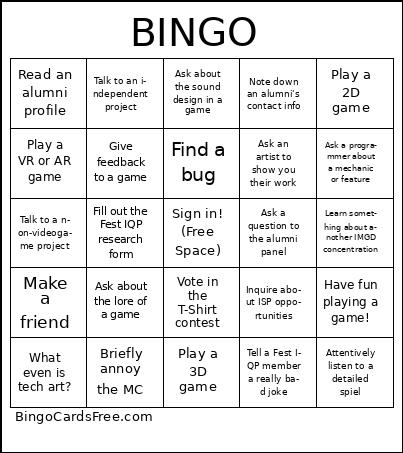
BINGO
Read an alumni profileTalk to an independent projectAsk about the sound design in a gameNote down an alumni's contact infoPlay a 2D game
Play a VR or AR gameGive feedback to a gameFind a bugAsk an artist to show you their workAsk a programmer about a mechanic or feature
Talk to a non-videogame projectFill out the Fest IQP research formSign in! (Free Space)Ask a question to the alumni panelLearn something about another IMGD concentration
Make a friendAsk about the lore of a gameVote in the T-Shirt contestInquire about ISP opportunitiesHave fun playing a game!
What even is tech art?Briefly annoy the MCPlay a 3D gameTell a Fest IQP member a really bad jokeAttentively listen to a detailed spiel
This is shown at the top of the template and game pages.
Optional. If this template makes to the front page, you will be credited for creating it.
Shown at the top of each bingo card.

This can be text or an image. Images larger than 50 KB may be compressed and may lose transparency.
If words on a line are separated by this text, then:
  • Bingo card will only show the text on the right side of the separator.
  • The PDF call list will show the full text.
  • To disable this feature, clear this field.
Quiz Mode ON
Select which side of the quiz separator to show on the card preview on this page. When printing or playing, calling cards always show the right side only.
If words on a line are separated by this text, then:
  • The text on the right side of the separator will be spoken by the online game play.
  • Bingo card will only show the text on the left side of the separator.
  • The PDF call list will show the full text.
  • To disable this feature, clear this field.
Audio Mode ON
Use separate item lists for each column. This is useful for american traditional 75 ball number bingo or cards where each column should draw from a different set of items.
Enter numbers, words or phrases, each one on a new line. Up to 255 items are supported.

Items Per Column:
To specify items per column, eg for 75 ball bingo, turn ON the "Items Per Column" setting.
Sort   |   No Dups
Supports:
  1. Up to 99 images.
  2. Single or multiple image uploads.
  3. Up to 5 MB file size per image.
  4. You can use both Grid Items and Grid Images.
  5. Click an image or label to edit the label or delete the image.
  6. If an image background changes to white, remove transparency or reduce the image size to < 10KB.
    Choose whether image labels appear on bingo cards. Image labels are always shown on the calling card.
    Grid size in Columns x Rows format.
    Free space is usually the center square of the card. It is like a joker or a wild square, and counts towards the winning pattern.
    • Shows text or an image in the Free Space cell.
    • Make sure Free Space Cell is not set to "None".
    • To show text, enter text.
    • To show an image, click the button on the right and select an image.
    • If the image background changes to white, remove transparency or reduce the image size to < 10KB.
    Select Yes to generate unique random cards.

    If No is selected, all cards will have the same text in the same order, which might be useful in educational or quiz settings.
    Text is automatically resized to fit inside each cell. Shorter text may appear very large. Choose a smaller maximum font size to limit how large the text can get.
    Title text color.

    * Applicable when Card Title is text.
    Title background shape.

    * Requires Title Back Opacity to be > 0%.
    Title background opacity.

    * Requires Title Back Shape.
    Title background shape color.

    * Requires Title Back Shape.
    * Requires Title Back Opacity to be > 0%.
    Title background border color.

    * Requires Title Back Shape.
    * Requires Title Back Opacity to be > 0%.
    Grid Text color.
    Grid background color.
    Grid line color.
    • Background shape for cells.
    • Select a stock image or upload your own custom image.
    • You can use Cell Transparency setting to change how prominently the background shape shows.
    • If you select a shape other than Grid, you may have to increase Cell Padding if you want to fit the text inside the shape.
    • Don't see the selected image?
      Set Cell Transparency <50.
    Empty space inside each cell between border and text.
    Space between any 2 cells.
    0% makes grid background opaque. Higher setting makes grid background transparent allowing card background image or card background color to show.
    Outside border width.
    Card outside border color.

    * Requires Card Border Width > 0%
    Yes makes the card corners rounded.
    Empty space between card border and card contents.
    Card background color.
    • Background image for the whole card.
    • Select a stock image or upload your own custom image.
    • Use Card Transparency and Cell Transparency to control how much of the image shows through.
    Don't see the selected image?
    • Set Card Transparency >50.
    • Set Card Border Width >0 or Card Padding >0.
    • Set Cell Transparency >50.
    Select how the background image covers the whole card. You can also choose to repeat the image.
    Controls the transparency of the card background color. Higher values make the card background more transparent, allowing the card background image or outer background to show through.
    This mode uses rapid animations. It may cause dizziness, nausea, or trigger sensitive individuals. Please use responsibly.
    Warning! 
    Public: Anyone can see your card template, including search engines

    Private: Only you can see and edit the card template. You will need to be signed in.

    Click to Sign-Up « Free!!!

    Click to Sign-In
    Number of cards to generate and include in the Full PDF. The Preview button will always generate only 1 card.
    Choose whether to include a call list in the Full PDF. Grid prints the call list as a grid; List prints it as a text list.
    Printer paper size.
    Paper orientation for printing. Some card layouts may look better in portrait or landscape.
    Arrangement of cards on each page of paper.
    Horizontal margin on left and right sides of each card.
    Vertical margin on top and bottom sides of each card.
    Colors: Removes background to save ink for printing.

    B&W: Removes background & changes colors to black & white to save ink for printing.
    Select amount of empty space to keep in each cell for participants to write something.

    This feature is also called human bingo, people bingo, social bingo, get-to-know bingo or ice breaker bingo.
    Starting card number. Change if you need to reprint a set of cards starting with a specific card number.

    Note: If this is not 1, then call list (index card) will not be printed.
    Header height. Header is shown only when there is 1 or more characters.
    Instructions or any other message(s) at the top of each card.
    Footer height. Footer is shown only when there is 1 or more characters.
    Instructions or any other message(s) at the bottom of each card.
    All fonts support English.

    For non-English support in PDF, please try FreeSans, FreeSerif, DejaVuSans, DejaVuSerif or NotoSans

    Suggestions | Feedback | Bug

    Similar Bingo Cards:

    About: This bingo card is the perfect companion for anyone attending an Interactive Media & Game Development Fest or similar showcase event. With a mix of playful and informational prompts, it encourages participants to engage with alumni, creators, and projects while exploring all aspects of game development. It's ideal for students, prospective majors, or anyone eager to dive deeper into the IMGD community and have some fun along the way.

    How To: To get a printable PDF, click the Print button. You can alter the number of cards and other printing preferences on the Print tab. Grid items and free space content can be added on the Basic tab. Appearance can be highly personalized on the corresponding tabs, or you can quickly locate any preference on the 🔍 tab.

    How to play Alphafest card Bingo?

    • Printed Caller: Print PDF calling list & calling slips and physically choose the slips.
    • Digital Caller: Click on the Play button above.
    • Digital Players: Click on the Play button above, and then click on the 🎫 button.
    • Printed Players: Print PDF bingo cards and physically cross off the cards.
    • Hybrid Play: Select any combination above. For example, caller can be either Printed or Digital. And players can be Printed or Digital or a combo of both.

    Step-By-Step:

    1. Start by saving the Alphafest card PDF by clicking on the "Print" button above.
    2. Open the PDF and print a hard copy.
    3. For random drawing, you can print another copy of the call list, cut, fold and then pick them randomly at play time.
    4. Cut the bingo cards at the cut marks if there are more than 1 bingo cards per page.
    5. Give one card to each player. For marking, you can use markers. Crayons are the cheapest.
    6. Select one person to be the caller. If you are playing in a small group, the caller may also play along with their own Bingo card.
    7. The caller opens the play by randomly pulling an item from the call list and announcing it to all players.
    8. The players scan their cards to see if they have the announced word. If they do, they dab that word.
    9. The first player to complete a horizontal, vertical, or a diagonal line of marked items shouts "Bingo!" and wins the play.
    10. The caller validates that the items crossed off form a proper line as per the Bingo card and call list.
    11. You can play for different patterns or a full card blackout for an extended play.

    Alphafest card BingoThis Alphafest card Bingo Game contains following Words or Phrases: Read an alumni profile, Talk to an independent project, Ask about the sound design in a game, Note down an alumni's contact info, Play a 2D game, Play a VR or AR game, Give feedback to a game, Find a bug, Ask an artist to show you their work, Ask a programmer about a mechanic or feature, Talk to a non-videogame project, Fill out the Fest IQP research form, Sign in! (Free Space), Ask a question to the alumni panel, Learn something about another IMGD concentration, Make a friend, Ask about the lore of a game, Vote in the T-Shirt contest, Inquire about ISP opportunities, Have fun playing a game!, What even is tech art?, Briefly annoy the MC, Play a 3D game, Tell a Fest IQP member a really bad joke, Attentively listen to a detailed spiel.

    Advertisement