Print free Basement BIngo cards or adjust them,
limitless prints! Pick from 42,200+ designs or use our bingo card generator.
Add numbers, words, pictures, or mix them all.
Play using PDF printouts, digital bingo cards,
and our digital bingo caller, or mix physical and digital.
About: This bingo card is a nostalgic hunt perfect for museum staff, volunteers, or fans of quirky archives. It captures the vibe of rummaging through decades of artifacts, lost tech, and delightful oddities hiding in storage rooms. Use it to bring some fun to inventory days, team-building events, or even as an icebreaker at history-themed gatherings.
How To: To save a PDF to print, click the Print button.
You can change the card quantity and other
print options on the Print tab.
Grid items and free space text can be edited on the Basic tab.
Appearance can be completely personalized on the
corresponding tabs, or you can quickly find any setting
using the 🔍 tab.
How to play Basement BIngo Cards?
Printed Players: Print PDF bingo cards and physically scratch the cards.
Virtual Players: Click on the Play button above, and then click on the 🎫 button.
Virtual Caller: Click on the Play button above.
Printed Caller: Print PDF calling list & calling slips and physically select the slips.
Hybrid Mode: Pick any combination above.
For example, caller can be either Printed or Virtual.
And players can be Printed or Virtual or a combination of both.
Step-By-Step:
Start by downloading the Basement BIngo PDF by clicking on the "Print" button above.
Open the PDF and print it.
For random drawing, you can print another copy of the call list, cut, fold and then pull them randomly at play time.
Cut the bingo cards at the cut marks if there are more than 1 bingo cards per page.
Give one card to each player. For marking, you can use pencils. Crayons cost the least.
Pick one person to be the caller. If you are playing in a small group, the caller can also play along with their own Bingo card.
The caller begins the game by randomly picking an item from the call list and saying it to everyone.
The players look at their cards to see if they have the announced word. If they do, they cross off that word.
The first player to complete a horizontal, vertical, or a diagonal line of marked items yells "Bingo!" and wins the game.
The caller checks that the items crossed off form a proper line as per the Bingo card and call list.
You can play for different patterns or a full card blackout for an extended game.
This Basement BIngo Cards Game contains following Words or Phrases: Signature of a disgraced politician, Grimy Glass Blocks, The extra tablet from the 10 commandments, Klezmer Celebration Poster, Bamboo rods, A brochure or program from an event before 2010, Photo of Bonnie, Piece of outdated technology, Photo of Terry during the restoration, Old Annual Reports from MAES or Eldridge Street Project, An original appeal letter from Eldridge Street Project, promotional item with the old logo, A VHS tape with absolutely no label, mystery key with no known lock, key labeled with a room that no longer exists, stack of old museum maps, outdated NYC subway map, newspaper clipping about the museum, newspaper clipping that has nothing to do with the museum, floppy disk, CD-ROM containing "important files", dead computer mouse, mystery remote control, roll of undeveloped film, disposable camera, single googly eye, Construction paper in an aggressively specific color, partially completed children's craft, box labeled "CRAFT SUPPLIES" containing absolutely no craft supplies, box labeled "MISC.", old paint chip, sample of historic tile, receipt from the restoration project, tote bag from a long-ago program, button/pin from a past campaign, donor thank-you card from the 2000s, mysterious handwritten list, document that uses a fax number, staff photo with at least one person nobody recognizes, photo of a very young version of a current/former staff member, program featuring a performer who became famous later, document with an address for a Lower East Side institution that no longer exists, old map of the neighborhood, tiny artifact that someone has carefully labeled "DO NOT THROW OUT", box inside another box inside another box, oldest piece of office supply anyone can find, a Barbra Streisand CD.

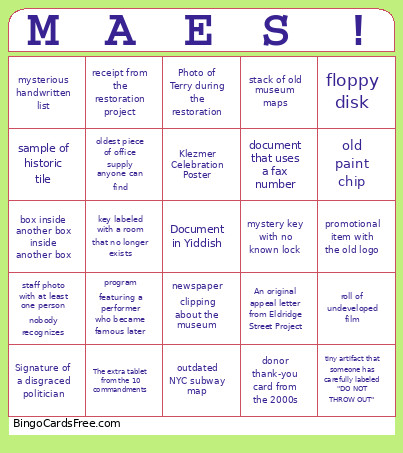 This Basement BIngo Cards Game contains following Words or Phrases: Signature of a disgraced politician, Grimy Glass Blocks, The extra tablet from the 10 commandments, Klezmer Celebration Poster, Bamboo rods, A brochure or program from an event before 2010, Photo of Bonnie, Piece of outdated technology, Photo of Terry during the restoration, Old Annual Reports from MAES or Eldridge Street Project, An original appeal letter from Eldridge Street Project, promotional item with the old logo, A VHS tape with absolutely no label, mystery key with no known lock, key labeled with a room that no longer exists, stack of old museum maps, outdated NYC subway map, newspaper clipping about the museum, newspaper clipping that has nothing to do with the museum, floppy disk, CD-ROM containing "important files", dead computer mouse, mystery remote control, roll of undeveloped film, disposable camera, single googly eye, Construction paper in an aggressively specific color, partially completed children's craft, box labeled "CRAFT SUPPLIES" containing absolutely no craft supplies, box labeled "MISC.", old paint chip, sample of historic tile, receipt from the restoration project, tote bag from a long-ago program, button/pin from a past campaign, donor thank-you card from the 2000s, mysterious handwritten list, document that uses a fax number, staff photo with at least one person nobody recognizes, photo of a very young version of a current/former staff member, program featuring a performer who became famous later, document with an address for a Lower East Side institution that no longer exists, old map of the neighborhood, tiny artifact that someone has carefully labeled "DO NOT THROW OUT", box inside another box inside another box, oldest piece of office supply anyone can find, a Barbra Streisand CD.