
Campus Update Bingo Cards - Print Free or Customize
Print free Campus Update bingo cards or personalize, limitless prints! Pick from 42,200+ templates or use our bingo card generator. Add numbers, words, photos, or any combination. Play using PDF printouts, online bingo cards, and our online bingo caller, or combine all formats.
About: This bingo card perfectly captures the energy and inside jokes of a Delaware Tech staff or faculty meeting, making it ideal for events like Convocation or professional development sessions. With nods to campus culture, familiar faces, and recurring themes, this card keeps everyone alert, engaged, and having fun as they celebrate big milestones and everyday moments together.
How To: To save a PDF to print, click the Print button. You can change the card quantity and other print settings on the Print tab. Grid items and free space text can be added on the Basic tab. Appearance can be totally customized on the relevant tabs, or you can easily search any option using the 🔍 tab.
How to play Campus Update Bingo Cards?
- Online Caller: Click on the Play button above.
- Printed Players: Print PDF bingo cards and manually write on the cards.
- Printed Caller: Print PDF calling list & calling slips and manually pick the slips.
- Online Players: Click on the Play button above, and then click on the 🎫 button.
- Combo Play: Pick any combination above. For instance, caller can be either Offline or Online. And players can be Offline or Online or a combo of both.
Step-By-Step:
- Start by downloading the Campus Update PDF by clicking on the "Print" button above.
- Open the PDF and print a hard copy.
- For random calling, you can print another copy of the call list, cut, fold and then draw them randomly at play time.
- Cut the bingo cards at the cut lines if there are more than 1 bingo cards per page.
- Give one card to each player. For marking, you can use pens. Crayons are the cheapest.
- Pick one person to be the caller. If you are playing in a small group, the caller can also play along with their own Bingo card.
- The caller opens the play by randomly pulling an item from the call list and calling out it to everyone.
- The players scan their cards to see if they have the announced word. If they do, they cross off that word.
- The first player to complete a horizontal, vertical, or a diagonal line of marked items shouts "Bingo!" and wins the game.
- The caller checks that the items marked form a correct line according to the Bingo card and call list.
- You can play for varied patterns or a full card blackout for a longer game.
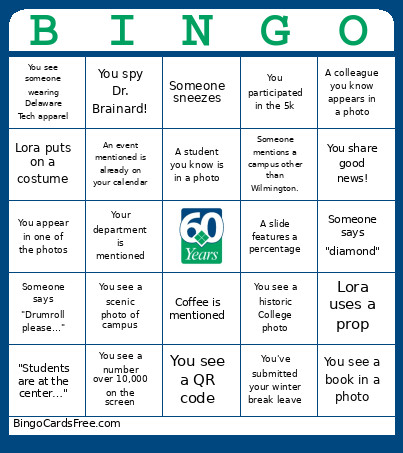 This Campus Update Bingo Cards Game contains following Words or Phrases: Someone mentions Enrollment numbers, An event you didn't know about is mentioned, A colleague you know appears in a photo, Someone makes a joke, The audience laughs, A photo of food appears, Someone uses an acronym, Someone mentions the weather, Someone mentions AI, Someone says "Pathways", Lora puts on a costume, Winter Break is mentioned, An event you attended is mentioned, "Students are at the center…", Renovations are mentioned, Someone in your department is recognized, You add to the word cloud, You see a graduation photo, Coffee is mentioned, A student you know is in a photo, Someone says "community", You see a historic College photo, The 60th anniversary is mentioned, You answer a poll, Someone says "diamond", The audience applauds, A video plays, You see a QR code, You see a photo of someone wearing sunglasses, Your department is mentioned, A slide has an exclamation point, A photo of someone holding an award, You learn something new, Someone sneezes, Someone comes in late, You see someone wearing Delaware Tech apparel, A slide features a percentage, Someone's in a costume, Music plays, Someone next to you raised their hand, You share good news!, Someone says SEED Scholarship, Someone asks a question, Lora talks about pickles, Lora uses a prop, You spy Dr. Brainard!, Stretch break, Someone mentions a campus other than Wilmington., Someone references a college other than Delaware Tech., Someone says "Drumroll please…", Mardi Gras is mentioned, You see a snowflake, You appear in one of the photos, You've submitted your winter break leave, You participated in the 5k, You see a book in a photo, You see a piano in a photo, You attended at least one DTCC athletic game this semester, You participated in a wellness activity this semester, You see a graduation cap, You sat in the front row, You see someone drink coffee or tea, Someone mentions the Philadelphia Eagles., You see a photo of a ribbon cutting., You see a scenic photo of campus, An event mentioned is already on your calendar, You see a number over 10,000 on the screen.