Print free EA Social bingo cards or personalize,
unlimited prints! Choose from 42,200+ templates or use the bingo card generator.
Add numbers, phrases, photos, or all of them.
Play using PDF prints, virtual bingo cards,
and the virtual bingo caller, or go hybrid.
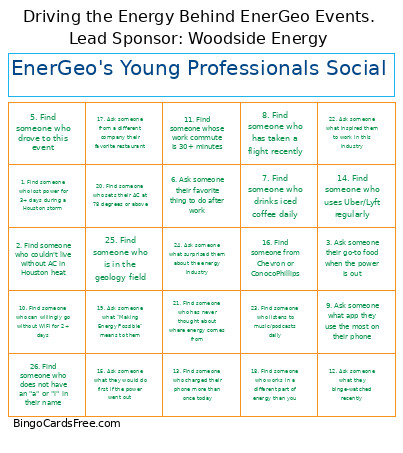
About: This bingo card is perfect for a networking event or mixer in the Houston energy industry, especially for professionals looking to break the ice with fun, relatable questions. The prompts center around daily life in Houston, energy sector experiences, and personal habits, making it easy for attendees to connect and share stories while getting to know each other.
How To: To get a printable PDF, click the Print button.
You can alter the number of cards and other
print options on the Print tab.
Grid items and free space content can be edited on the Basic tab.
Appearance can be exactly customized on the
relevant tabs, or you can easily locate any setting
on the 🔍 tab.
How to play EA Social Bingo Cards?
Paper Caller: Print PDF calling list & calling slips and physically draw the slips.
Digital Caller: Click on the Play button above.
Paper Players: Print PDF bingo cards and physically write on the cards.
Digital Players: Click on the Play button above, and then click on the 🎫 button.
Combo Play: Choose any combination above.
For instance, caller can be either Paper or Digital.
And players can be Paper or Digital or a combination of both.
Step-By-Step:
Start by downloading the EA Social PDF by clicking on the "Print" button above.
Open the PDF and print it.
For random calling, you can print another copy of the call list, cut, fold and then pick them randomly at play time.
Cut the bingo cards at the cut marks if there are more than 1 bingo cards per page.
Distribute one card per player. For marking, you can use crayons. Crayons cost the least.
Choose one person to be the caller. If you are playing in a small group, the caller can as well play along with their own Bingo card.
The caller starts the play by randomly drawing an item from the call list and calling out it to all players.
The players check their cards to see if they have the called word. If they do, they cross off that word.
The first player to complete a horizontal, vertical, or a diagonal line of marked items shouts "Bingo!" and wins the play.
The caller checks that the items marked form a proper line according to the Bingo card and call list.
You can play for varied patterns or a full card blackout for an extended play.
This EA Social Bingo Cards Game contains following Words or Phrases: 1. Find someone who lost power for 3+ days during a Houston storm, 2. Find someone who couldn't live without AC in Houston heat, 3. Ask someone their go-to food when the power is out, 13. Find someone who charged their phone more than once today, 5. Find someone who drove to this event, 6. Ask someone their favorite thing to do after work, 7. Find someone who drinks iced coffee daily, 8. Find someone who has taken a flight recently, 9. Ask someone what app they use the most on their phone, 10. Find someone who can willingly go without WiFi for 2+ days, 11. Find someone whose work commute is 30+ minutes, 12. Ask someone what they binge-watched recently, 14. Find someone who uses Uber/Lyft regularly, 15. Ask someone what they would do first if the power went out, 16. Find someone from Chevron or ConocoPhillips, 17. Ask someone from a different company their favorite restaurant, 18. Find someone who works in a different part of energy than you, 19. Ask someone what "Making Energy Possible" means to them, 20. Find someone who sets their AC at 78 degrees or above, 21. Find someone who has never thought about where energy comes from, 22. Ask someone what inspired them to work in this industry, 23. Find someone who listens to music/podcasts daily, 24. Ask someone what surprised them about the energy industry, 25. Find someone who is in the geology field, 26. Find someone who does not have an "a" or "i" in their name.

 This EA Social Bingo Cards Game contains following Words or Phrases: 1. Find someone who lost power for 3+ days during a Houston storm, 2. Find someone who couldn't live without AC in Houston heat, 3. Ask someone their go-to food when the power is out, 13. Find someone who charged their phone more than once today, 5. Find someone who drove to this event, 6. Ask someone their favorite thing to do after work, 7. Find someone who drinks iced coffee daily, 8. Find someone who has taken a flight recently, 9. Ask someone what app they use the most on their phone, 10. Find someone who can willingly go without WiFi for 2+ days, 11. Find someone whose work commute is 30+ minutes, 12. Ask someone what they binge-watched recently, 14. Find someone who uses Uber/Lyft regularly, 15. Ask someone what they would do first if the power went out, 16. Find someone from Chevron or ConocoPhillips, 17. Ask someone from a different company their favorite restaurant, 18. Find someone who works in a different part of energy than you, 19. Ask someone what "Making Energy Possible" means to them, 20. Find someone who sets their AC at 78 degrees or above, 21. Find someone who has never thought about where energy comes from, 22. Ask someone what inspired them to work in this industry, 23. Find someone who listens to music/podcasts daily, 24. Ask someone what surprised them about the energy industry, 25. Find someone who is in the geology field, 26. Find someone who does not have an "a" or "i" in their name.