
If Live bingo Cards - Print Free or Customize
Print free If Live bingo cards or adjust them, unlimited prints! Choose from 42,200+ designs or use our bingo card generator. Add numbers, phrases, images, or any combination. Play using PDF prints, digital bingo cards, and our digital bingo caller, or go hybrid.
About: This bingo card captures all the lively moments, classic catchphrases, and spontaneous mishaps that make virtual company meetings so memorable. Ideal for team offsites, leadership town halls, or large webinars, it’s a fun way to keep everyone engaged and entertained as you celebrate company culture, teamwork, innovation, and those unexpected technical glitches.
How To: To save a PDF to print, click the Print button. You can change the number of cards and other print options on the Print tab. Grid items and free space text can be added on the Basic tab. Appearance can be entirely personalized on the relevant tabs, or you can quickly search any option using the 🔍 tab.
How to play If Live bingo Cards?
- Paper Players: Print PDF bingo cards and manually write on the cards.
- Paper Caller: Print PDF calling list & calling slips and manually select the slips.
- Virtual Players: Click on the Play button above, and then click on the 🎫 button.
- Virtual Caller: Click on the Play button above.
- Hybrid Play: Choose any combination above. For instance, caller can be either Offline or Virtual. And players can be Offline or Virtual or a combination of both.
Step-By-Step:
- Start by saving the If Live bingo PDF by clicking on the "Print" button above.
- Open the PDF and print it.
- For random drawing, you can print another copy of the call list, cut, fold and then draw them randomly at play time.
- Cut the bingo cards at the cut lines if there are greater than 1 bingo cards per page.
- Give one card to each player. For marking, you can use pencils. Crayons are the cheapest.
- Choose one person to be the caller. If you are playing in a small group, the caller can as well play along with their own Bingo card.
- The caller initiates the game by randomly picking an item from the call list and announcing it to all players.
- The players scan their cards to see if they have the announced word. If they do, they cross off that word.
- The first player to finish a horizontal, vertical, or a diagonal line of crossed items announces "Bingo!" and wins the play.
- The caller validates that the items marked form a proper line as per the Bingo card and call list.
- You can play for multiple patterns or a full card blackout for an extended play.
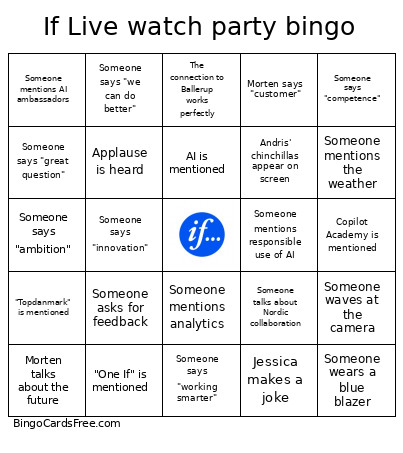 This If Live bingo Cards Game contains following Words or Phrases: Morten mentions growth, Someone says "Small wins, big impact", Someone mentions customer needs, Morten talks about the future, Morten mentions shareholders or investors, Someone says "working smarter", Jessica welcomes everyone, Stian asks Morten a question, The fire in Drammen is mentioned, Someone talks about helping customers, Klas mentions SME, Malmö is mentioned, Someone talks about sales, Jesper shares a sales tip, Someone says "scale", Someone mentions learning from another BA, Ballerup appears live on screen, The connection to Ballerup works perfectly, The connection to Ballerup does not work perfectly, Someone says "one-to-one sessions", Pethelp is mentioned, Pethelp video is shown, Someone uses the phrase "start-up", A product is described as a small win, Someone talks about Nordic collaboration, Copilot is mentioned, AI is mentioned, Malin says "efficiency", Someone mentions AI ambassadors, Someone mentions best practices, Someone mentions responsible use of AI, Copilot Academy is mentioned, Someone mentions a training programme, Someone says "competence", An audience member appears on screen, A QR code appears, Someone asks for feedback, Jessica summarizes key takeaways, Next If Live is mentioned, Someone drinks coffee on camera, Someone says "great question", Somebody laughs at their own joke, Someone thanks their colleagues, Someone wears a blue blazer, Someone says "absolutely", Someone loses their train of thought, Someone mentions summer vacation, Applause is heard, Someone says "innovation", Someone mentions analytics, Someone says "digital", Someone says "collaboration", Someone says "impact" three times in one minute, Someone mentions agility, A watch party audience is shown, Someone says "opportunity", A pet is mentioned, Someone says "thank you for joining", Morten says "customer", Jessica makes a joke, Someone says "we can do better", Someone says "that's a great example", Someone mentions teamwork, A technical issue occurs, Someone says "let's go", Someone says "ambition", Someone mentions culture, Someone says "faster", A cat appears on screen, "Topdanmark" is mentioned, Someone mentions the weather, "One If" is mentioned, Andris' chinchillas appear on screen, Someone says "quickly" and then talks for more than a minute, Someone says "really exciting", Two people start speaking at the same time, There is an unexpectedly long pause, A speaker forgets what question was asked, Someone waves at the camera, Someone says "exactly".