Institutional (in)Effectiveness Bingo Cards - Print Free or Customize
Print free Institutional (in)Effectiveness bingo cards or personalize,
limitless prints! Pick from 42,200+ designs or use our bingo card generator.
Add numbers, words, photos, or all of them.
Play using printable PDF, virtual bingo cards,
and our virtual bingo caller, or mix physical and digital.
About: This bingo card perfectly captures the daily adventures and inside jokes of data analysts, researchers, and remote workers—especially during the holiday season. It’s ideal for team meetings, virtual happy hours, or end-of-year parties, bringing everyone together to laugh about quirky habits, work mishaps, and those memorable moments only your colleagues truly understand.
How To: To save a PDF to print, click the Print button.
You can alter the number of cards and other
print preferences on the Print tab.
Grid items and free space content can be edited on the Basic tab.
Appearance can be entirely personalized on the
corresponding tabs, or you can quickly locate any setting
using the 🔍 tab.
How to play Institutional (in)Effectiveness Bingo Cards?
Printed Caller: Print PDF calling list & calling slips and physically pick the slips.
Virtual Players: Click on the Play button above, and then click on the 🎫 button.
Printed Players: Print PDF bingo cards and physically write on the cards.
Virtual Caller: Click on the Play button above.
Hybrid Mode: Choose any combination above.
For instance, caller can be either Paper or Virtual.
And players can be Paper or Virtual or a combination of both.
Step-By-Step:
Start by downloading the Institutional (in)Effectiveness PDF by clicking on the "Print" button above.
Open the PDF and print it.
For random calling, you can print another copy of the call list, cut, fold and then pick them randomly at play time.
Cut the bingo cards at the cut marks if there are greater than 1 bingo cards per page.
Give one card to each player. For marking, you can use markers. Crayons are the cheapest.
Choose one person to be the caller. If you are playing in a small group, the caller may as well play along with their own Bingo card.
The caller opens the game by randomly drawing an item from the call list and calling out it to everyone.
The players check their cards to see if they have the announced word. If they do, they mark that word.
The first player to finish a horizontal, vertical, or a diagonal line of crossed items shouts "Bingo!" and wins the game.
The caller validates that the items marked form a proper line as per the Bingo card and call list.
You can play for different patterns or a full card blackout for a longer game.
This Institutional (in)Effectiveness Bingo Cards Game contains following Words or Phrases: Received request with no context, Someone insisted your data is wrong, Worked on a survey, Received request for a non-existent metric, Found an unexpected outlier in the data, Re-ran the same code, hoping it magically fixed itself, Gave a presentation, only blank faces, Forgot to unmute in a Zoom/Teams meeting, Said, "can you see my screen?", Saved a file but forgot where, Group collectively forgot what agenda item they're on, Have a snack drawer, Had something peppermint- flavored this season, Wearing something festive, Attended a work potluck, Joined a meeting from the car, Found a typo after hitting "send", Decorated your office for the holidays, Created a meme for work, Received research request over the weekend, Were bribed, I mean, gifted something by a requestor, Owned by a cat (or many cats), Mistakenly said that it was an easy pull (narrator: it was not), Named a file something like "Report_final v8_THISONE", Found a field with values like "Y", "Yes", "1", "True".

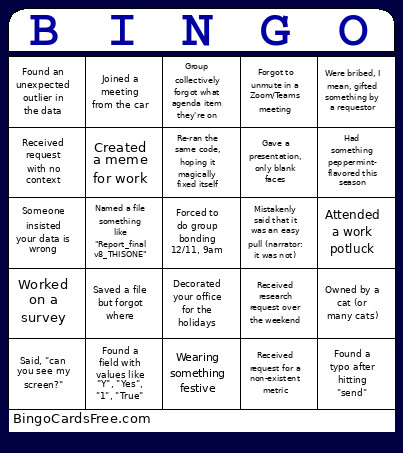 This Institutional (in)Effectiveness Bingo Cards Game contains following Words or Phrases: Received request with no context, Someone insisted your data is wrong, Worked on a survey, Received request for a non-existent metric, Found an unexpected outlier in the data, Re-ran the same code, hoping it magically fixed itself, Gave a presentation, only blank faces, Forgot to unmute in a Zoom/Teams meeting, Said, "can you see my screen?", Saved a file but forgot where, Group collectively forgot what agenda item they're on, Have a snack drawer, Had something peppermint- flavored this season, Wearing something festive, Attended a work potluck, Joined a meeting from the car, Found a typo after hitting "send", Decorated your office for the holidays, Created a meme for work, Received research request over the weekend, Were bribed, I mean, gifted something by a requestor, Owned by a cat (or many cats), Mistakenly said that it was an easy pull (narrator: it was not), Named a file something like "Report_final v8_THISONE", Found a field with values like "Y", "Yes", "1", "True".