July '26 Use Your Stash Challenge<3 Bingo Cards - Print Free or Customize
Print free July '26 Use Your Stash Challenge<3 bingo cards or customize,
unlimited cards! Select from 42,200+ designs or use the bingo card generator.
Add numbers, phrases, pictures, or all of them.
Play using printed PDF, virtual bingo cards,
and the virtual bingo caller, or mix physical and digital.
About: This bingo card is perfect for stationery lovers and journal enthusiasts looking to shake up their routine and rediscover their supplies. Fun, creative tasks encourage trying new things, getting organized, and enjoying the process of writing, decorating, and connecting with others. It’s great for solo motivation or as a group challenge at meetups or online communities.
How To: To save a printable PDF, click the Print button.
You can change the card quantity and other
print preferences on the Print tab.
Grid items and free space content can be added on the Basic tab.
Appearance can be highly personalized on the
relevant tabs, or you can easily search any option
using the 🔍 tab.
How to play July '26 Use Your Stash Challenge<3 Bingo Cards?
Printed Caller: Print PDF calling list & calling slips and physically select the slips.
Printed Players: Print PDF bingo cards and physically write on the cards.
Virtual Caller: Click on the Play button above.
Virtual Players: Click on the Play button above, and then click on the 🎫 button.
Combo Play: Select any combination above.
For example, caller can be either Paper or Virtual.
And players can be Paper or Virtual or a combo of both.
Step-By-Step:
Start by downloading the July '26 Use Your Stash Challenge<3 PDF by clicking on the "Print" button above.
Open the PDF and print a hard copy.
For random drawing, you can print another copy of the call list, cut, fold and then draw them randomly at play time.
Cut the bingo cards at the cut lines if there are greater than 1 bingo cards per page.
Distribute one card per player. For marking, you can use crayons. Crayons cost the least.
Select one person to be the caller. If you are playing in a small group, the caller may also play along with their own Bingo card.
The caller opens the play by randomly drawing an item from the call list and saying it to everyone.
The players check their cards to see if they have the called word. If they do, they cross off that word.
The first player to finish a horizontal, vertical, or a diagonal line of marked items announces "Bingo!" and wins the play.
The caller verifies that the items crossed off form a correct line as per the Bingo card and call list.
You can play for different patterns or a full card blackout for a longer play.
This July '26 Use Your Stash Challenge<3 Bingo Cards Game contains following Words or Phrases: Decorate a notebook cover, Use up an ink sample vial, Clean out your pens, Make themed spread with stickers & washi, Ink up a pen with least used ink sample, Use a sticker sheet you've been hoarding, Write or draw 1 page with your most expensive pen, Write your fav song lyrics using already inked pen, Use your ephemera "trash" hoard, Write a letter on cute stationery, Swatch an ink sample you forgot you owned, Organize your sticker storage system, Doodle with a marker or tool you haven't used, List your top inks of 2026, Use a stationery "regret" purchase, Destash unused stationery supplies, Send happy mail to someone, Decorate spread with new/unused washi tape, Practice your handwriting using your fav pen, Organize your stationery station, Create a spread using stamps, Make an inkventory of your fav ink color, Use an ink that represents "happiness", Swatch and compare 2-3 similar inks, Experiment with an ink sample you dislike.

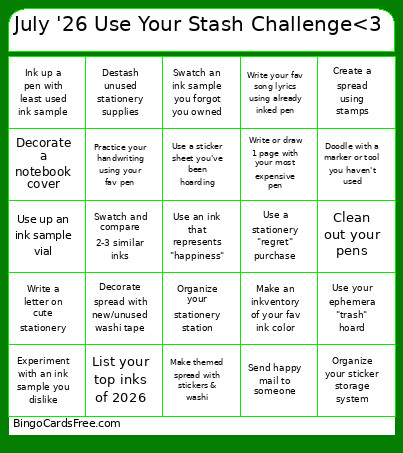 This July '26 Use Your Stash Challenge<3 Bingo Cards Game contains following Words or Phrases: Decorate a notebook cover, Use up an ink sample vial, Clean out your pens, Make themed spread with stickers & washi, Ink up a pen with least used ink sample, Use a sticker sheet you've been hoarding, Write or draw 1 page with your most expensive pen, Write your fav song lyrics using already inked pen, Use your ephemera "trash" hoard, Write a letter on cute stationery, Swatch an ink sample you forgot you owned, Organize your sticker storage system, Doodle with a marker or tool you haven't used, List your top inks of 2026, Use a stationery "regret" purchase, Destash unused stationery supplies, Send happy mail to someone, Decorate spread with new/unused washi tape, Practice your handwriting using your fav pen, Organize your stationery station, Create a spread using stamps, Make an inkventory of your fav ink color, Use an ink that represents "happiness", Swatch and compare 2-3 similar inks, Experiment with an ink sample you dislike.