Advertisement

KG BINGO Cards - Print Free or Customize

Print free KG BINGO cards or adjust them, limitless prints! Pick from 20,900+ templates or use our bingo card generator. Add numbers, words, pictures, or mix them all. Play using PDF prints, digital bingo cards, and our digital bingo caller, or mix physical and digital.

BINGO
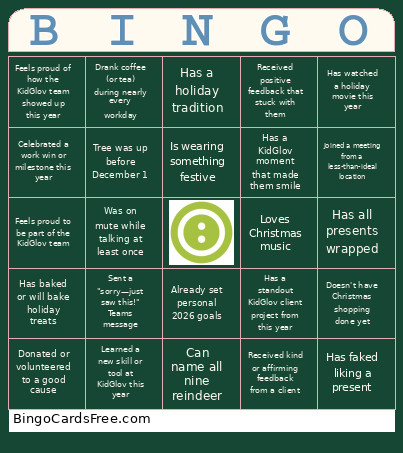
Has watched a holiday movie this yearHas all presents wrappedLoves Christmas musicCan name all nine reindeerTree was up before December 1
Is wearing something festiveHas a holiday traditionAlready set personal 2026 goalsDoesn't have Christmas shopping done yetHas baked or will bake holiday treats
Has faked liking a presentDonated or volunteered to a good causeHas a standout KidGlov client project from this yearLearned a new skill or tool at KidGlov this yearCelebrated a work win or milestone this year
Feels proud of how the KidGlov team showed up this yearReceived kind or affirming feedback from a clientReceived positive feedback that stuck with themFeels proud to be part of the KidGlov teamHas a KidGlov moment that made them smile
Joined a meeting from a less-than-ideal locationWas on mute while talking at least onceSent a "sorry—just saw this!" Teams messageDrank coffee (or tea) during nearly every workday
This is shown at the top of the template and game pages.
Optional. If this template makes to the front page, you will be credited for creating it.
Title is shown on top of each bingo card.

It can be text or an image. If the image is >50kb, then it will be compressed and may lose transparency.
If words on a line are separated by this text, then:
  • Bingo card will only show the text on the right side of the separator.
  • The PDF call list will show the full text.
  • To disable this feature, clear this field.
Quiz Mode ON
Lets you select which side of the quiz separator to show on the calling card just on this page for demo. When printing or playing, calling cards always show the right side only.
If words on a line are separated by this text, then:
  • The text on the right side of the separator will be spoken by the online game play.
  • Bingo card will only show the text on the left side of the separator.
  • The PDF call list will show the full text.
  • To disable this feature, clear this field.
Audio Mode ON
Enter numbers, words or phrases, each one on a new line. Up to 255 items are supported.

Column Mode:
To specify word lists per column, separate each word list by -c- in a line by itself. Example
Sort   |   No Dups
Support for-
  1. Up to 99 images.
  2. Multiple or Single image upload.
  3. Up to 5 MB file size per image.
  4. You can specify both Grid Items & Grid Images.
  5. Click on the image or label to edit label or delete image.
  6. If background of an image changes to white, either remove the transparency or reduce the image size < 10KB.
    Show Image labels or not on the bingo cards. Image labels are always shown on the calling card.
    Grid size in Columns x Rows format.
    Free space is usually the center square of the card. It is like a joker or a wild square, and counts towards the winning pattern.
    • Shows text or image in the Free Space Cell.
    • Make sure Free Space Cell is not set to "None".
    • To show text, enter text.
    • To show an image instead, click on the button on the right to select an image. If background of the image changes to white, either remove the transparency or reduce the image size to < 10KB.
    Select Yes to generate unique random cards.

    If No is selected, all cards will have the same text in the same order, which might be useful in educational or quiz settings.
    Font size is automatically downsized to fit text in each cell. This may make font size for shorter texts very large. If you don't like that look, then pick a smaller max. font size to prevent that.
    Title text color.

    * Applicable when Card Title is text.
    Title background shape.

    * Requires Title Back Opacity to be > 0%.
    Title background opacity.

    * Requires Title Back Shape.
    Title background shape color.

    * Requires Title Back Shape.
    * Requires Title Back Opacity to be > 0%.
    Title background border color.

    * Requires Title Back Shape.
    * Requires Title Back Opacity to be > 0%.
    Grid Text color.
    Grid background color.
    Grid line color.
    • Background shape for cells.
    • Select a stock image or upload your own custom image.
    • You can use Cell Transparency setting to change how prominently the background shape shows.
    • If you select a shape other than Grid, you may have to increase Cell Padding if you want to fit the text inside the shape.
    • Don't see the selected image?
      Set Cell Transparency <50.
    Empty space inside each cell between border and text.
    Space between any 2 cells.
    0% makes grid background opaque. Higher setting makes grid background transparent allowing card background image or card background color to show.
    Outside border width.
    Card outside border color.

    * Requires Card Border Width > 0%
    Yes makes the card corners rounded.
    Empty space between card border and card contents.
    Card background color.
    • Background image for the whole card.
    • Select a stock image or upload your own custom image.
    • You can use Grid Transparency setting to change how prominently the image shows behind the grid.
    Don't see the selected image?
    • Set Card Transparency >50.
    • Set Card Border Width >0 or Card Padding >0.
    • Set Cell Transparency >50.
    Select how the background image covers the whole card. You can also choose to repeat the image.
    Card image transparency.
    This mode uses rapid animations. It may cause dizziness, nausea, or trigger sensitive individuals. Please use responsibly.
    Warning! 
    Public: Anyone can see your card template, including search engines

    Private: Only you can see and edit the card template. You will need to be signed in.

    Click to Sign-Up « Free!!!

    Click to Sign-In
    Number of cards to generate and include in the Full PDF. The Preview button will always generate only 1 card.
    Select Yes to include call list in the Full PDF.
    Printer paper size.
    How to print on paper, ie paper orientation. Printed cards might look better one way or the other.
    Arrangement of cards on each page of paper.
    Horizontal margin on left and right sides of each card.
    Vertical margin on top and bottom sides of each card.
    Colors: Removes background to save ink for printing.

    B&W: Removes background & changes colors to black & white to save ink for printing.
    Select amount of empty space to keep in each cell for participants to write something.

    This feature is also called human bingo, people bingo, social bingo, get-to-know bingo or ice breaker bingo.
    Starting card number. Change if you need to reprint a set of cards starting with a specific card number.

    Note: If this is not 1, then call list (index card) will not be printed.
    Header height. Header is shown only when there is 1 or more characters.
    Instructions or any other message(s) at the top of each card.
    Footer height. Footer is shown only when there is 1 or more characters.
    Instructions or any other message(s) at the bottom of each card.
    All fonts support English.

    For non-English support in PDF, please try FreeSans, FreeSerif, DejaVuSans, DejaVuSerif or NotoSans

    Suggestions | Feedback | Bug

    Similar Bingo Cards: , ,

    About: This bingo card captures the holiday spirit with a blend of festive cheer and KidGlov team pride. It's perfect for a company holiday party or end-of-year team meeting, encouraging everyone to share both their seasonal traditions and memorable work moments. The tone is lighthearted, inclusive, and designed to spark laughter and camaraderie among colleagues.

    How To: To save a printable PDF, click the Print button. You can modify the number of cards and other printing settings on the Print tab. Grid items and free space text can be changed on the Basic tab. Appearance can be exactly customized on the relevant tabs, or you can quickly find any setting on the 🔍 tab.

    How to play KG BINGO Cards?

    • Printed Caller: Print PDF calling list & calling slips and physically choose the slips.
    • Digital Players: Click on the Play button above, and then click on the 🎫 button.
    • Digital Caller: Click on the Play button above.
    • Printed Players: Print PDF bingo cards and physically cross off the cards.
    • Hybrid Mode: Choose any combination above. For example, caller can be either Paper or Digital. And players can be Paper or Digital or a combination of both.

    Step-By-Step:

    1. Start by saving the KG BINGO PDF by clicking on the "Print" button above.
    2. Open the PDF and print a hard copy.
    3. For random calling, you can print another copy of the call list, cut, fold and then pick them randomly at play time.
    4. Cut the bingo cards at the cut lines if there are more than 1 bingo cards per page.
    5. Distribute one card per player. For marking, you can use pencils. Crayons are the cheapest.
    6. Choose one person to be the caller. If you are playing in a small group, the caller can as well play along with their own Bingo card.
    7. The caller begins the game by randomly picking an item from the call list and calling out it to everyone.
    8. The players check their cards to see if they have the called word. If they do, they dab that word.
    9. The first player to complete a horizontal, vertical, or a diagonal line of crossed items yells "Bingo!" and wins the play.
    10. The caller checks that the items crossed off form a proper line according to the Bingo card and call list.
    11. You can play for multiple patterns or a full card blackout for an extended play.

    KG BINGO CardsThis KG BINGO Cards Game contains following Words or Phrases: Has watched a holiday movie this year, Has all presents wrapped, Loves Christmas music, Can name all nine reindeer, Tree was up before December 1, Is wearing something festive, Has a holiday tradition, Already set personal 2026 goals, Doesn't have Christmas shopping done yet, Has baked or will bake holiday treats, Has faked liking a present, Donated or volunteered to a good cause, Has a standout KidGlov client project from this year, Learned a new skill or tool at KidGlov this year, Celebrated a work win or milestone this year, Feels proud of how the KidGlov team showed up this year, Received kind or affirming feedback from a client, Received positive feedback that stuck with them, Feels proud to be part of the KidGlov team, Has a KidGlov moment that made them smile, Joined a meeting from a less-than-ideal location, Was on mute while talking at least once, Sent a "sorry—just saw this!" Teams message, Drank coffee (or tea) during nearly every workday.

    Advertisement
    Show your Support
    1-75 Number Bingo Card 1-75 with Audio Prompts Play Group Bingo Play Solo Bingo How to Play Bingo
    Blank Bingo Card Education Bingo Cards Image Bingo Cards Features How to Win at Bingo
    Contact FAQs About Terms of Service Privacy Policy
    © 2025 bingocardsfree.com