Print free PRAD Week BINGO cards or adjust them,
unlimited prints! Select from 42,200+ templates or use our bingo card generator.
Add numbers, phrases, images, or mix them all.
Play using printed PDF, virtual bingo cards,
and our virtual bingo caller, or mix physical and digital.
About: This bingo card is a perfect fit for teacher inservice or professional development days, capturing all the familiar moments that make these gatherings so relatable. With a lighthearted look at common questions, tech hiccups, coffee runs, and schedule confusion, it’s sure to bring some laughs and camaraderie to any group of educators navigating a busy school prep day.
How To: To save a PDF to print, click the Print button.
You can change the card count and other
print settings on the Print tab.
Grid items and free space text can be edited on the Basic tab.
Appearance can be fully personalized on the
corresponding tabs, or you can quickly find any preference
using the 🔍 tab.
How to play PRAD Week BINGO Cards?
Printed Players: Print PDF bingo cards and manually mark the cards.
Virtual Players: Click on the Play button above, and then click on the 🎫 button.
Virtual Caller: Click on the Play button above.
Printed Caller: Print PDF calling list & calling slips and manually draw the slips.
Hybrid Mode: Pick any combination above.
For instance, caller can be either Paper or Virtual.
And players can be Paper or Virtual or a combination of both.
Step-By-Step:
Start by getting the PRAD Week BINGO PDF by clicking on the "Print" button above.
Open the PDF and print a hard copy.
For random drawing, you can print another copy of the call list, cut, fold and then draw them randomly at play time.
Cut the bingo cards at the cut lines if there are more than 1 bingo cards per page.
Give one card to each player. For marking, you can use pens. Crayons cost the least.
Pick one person to be the caller. If you are playing in a small group, the caller may also play along with their own Bingo card.
The caller opens the play by randomly pulling an item from the call list and announcing it to everyone.
The players check their cards to see if they have the called word. If they do, they cross off that word.
The first player to complete a horizontal, vertical, or a diagonal line of marked items announces "Bingo!" and wins the game.
The caller confirms that the items crossed off form a correct line as per the Bingo card and call list.
You can play for varied patterns or a full card blackout for an extended game.
This PRAD Week BINGO Cards Game contains following Words or Phrases: Get a text from the teacher group chat, Someone asks what time we're supposed to be somewhere, Someone asks where something is, Someone complains about the schedule, Someone asks what we're supposed to bring, Someone sends a picture of the schedule, Someone asks if something is actually mandatory, "I thought we didn't have to…", Someone asks about lunch, Someone brings an extra Alani, Someone says they're already exhausted, "I need coffee", Someone makes a coffee run, Someone goes to their classroom "for just a second", Someone realizes they forgot something at home, Someone makes an Amazon order, Someone takes a picture of something to remember it, Someone starts talking about their class list, Someone uses initials to talk about a student, Someone asks about a new staff member, Someone gets interrupted while trying to get something done, Someone gets pulled into a conversation in the hallway, Someone has a technology/login problem, Someone can't find the right website/password, Someone asks a question that was just answered, Someone realizes they missed an announcement, Someone looks at the clock during a meeting, Someone borrows a pen, "Future me's problem", "I'm not ready for kids yet", Someone is laminating during PD, "It's too hot", "It's too cold", Someone says they forgot their computer, "Data", Someone mentions BBOE, Someone mentions emergency procedures, Someone gets locked out of something.

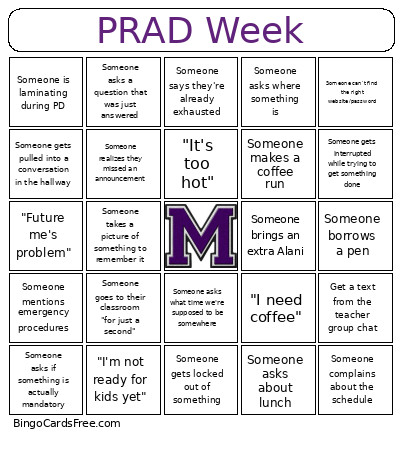 This PRAD Week BINGO Cards Game contains following Words or Phrases: Get a text from the teacher group chat, Someone asks what time we're supposed to be somewhere, Someone asks where something is, Someone complains about the schedule, Someone asks what we're supposed to bring, Someone sends a picture of the schedule, Someone asks if something is actually mandatory, "I thought we didn't have to…", Someone asks about lunch, Someone brings an extra Alani, Someone says they're already exhausted, "I need coffee", Someone makes a coffee run, Someone goes to their classroom "for just a second", Someone realizes they forgot something at home, Someone makes an Amazon order, Someone takes a picture of something to remember it, Someone starts talking about their class list, Someone uses initials to talk about a student, Someone asks about a new staff member, Someone gets interrupted while trying to get something done, Someone gets pulled into a conversation in the hallway, Someone has a technology/login problem, Someone can't find the right website/password, Someone asks a question that was just answered, Someone realizes they missed an announcement, Someone looks at the clock during a meeting, Someone borrows a pen, "Future me's problem", "I'm not ready for kids yet", Someone is laminating during PD, "It's too hot", "It's too cold", Someone says they forgot their computer, "Data", Someone mentions BBOE, Someone mentions emergency procedures, Someone gets locked out of something.